
Ask Your Data Anything: Using AI Chat in Lumor
Stop building filters and pivot tables. Ask your survey results a question in plain English and get a synthesised answer in seconds.
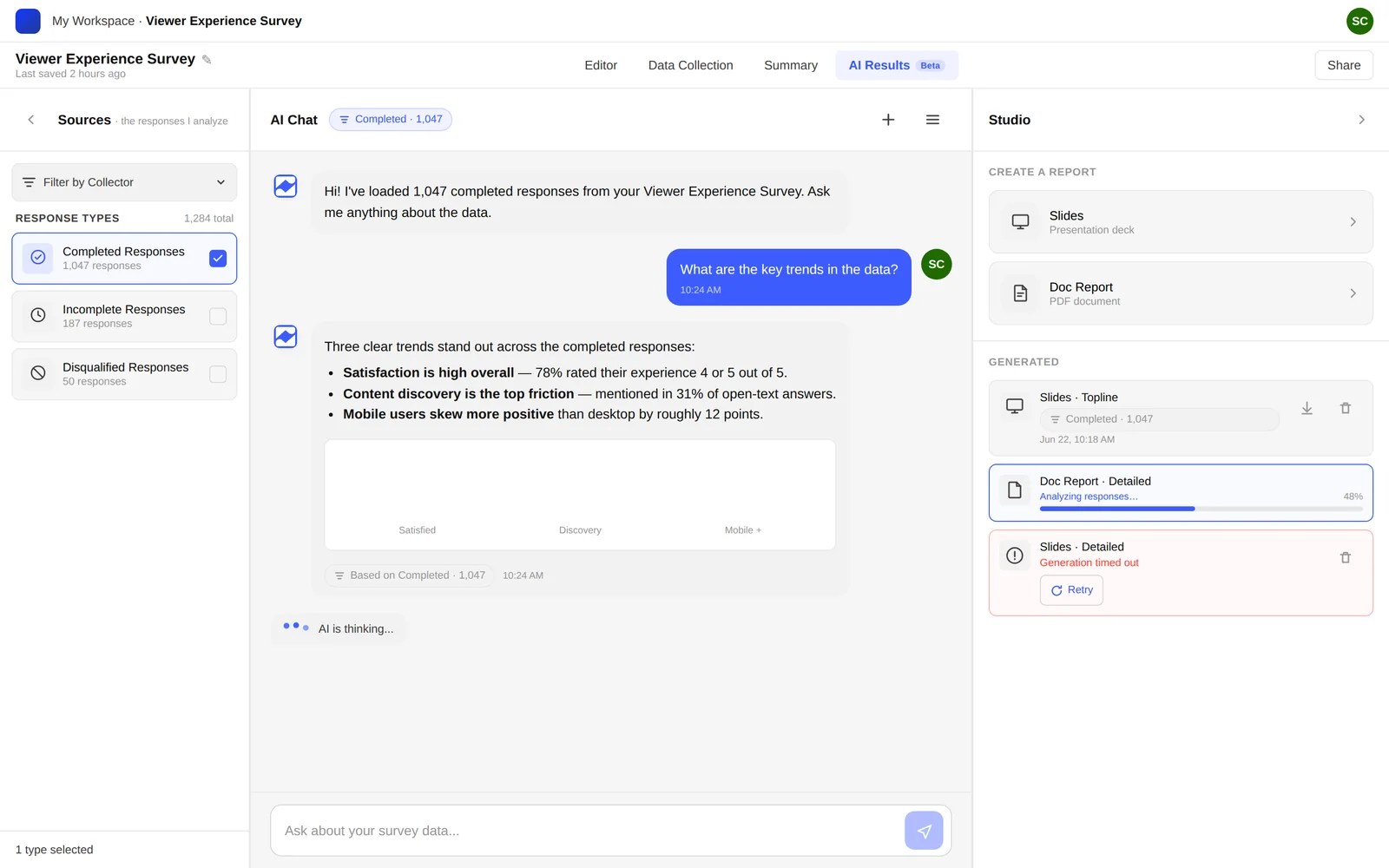
Most survey tools make you build the answer yourself — filter by segment, cross-tab two questions, export to a spreadsheet, and read the result off a pivot table. Lumor's AI Chat flips that. You ask your data a question in plain English and get a synthesised answer in seconds.
It's the fastest way to interrogate a dataset before you commit to a full report — and often it's all you need to settle a debate in a planning meeting.
Where AI Chat lives
Open any survey with responses and go to the Result tab. AI Chat sits alongside your results, with the full response set already loaded — quantitative answers, ratings, and every open-text response. You don't import or configure anything; it's reading the live data for that study.
Ask questions, not build filters
The shift is from constructing a query to asking a question. Instead of building a filter for “age 25–34 AND city = Bengaluru AND question 4”, you simply ask. Useful patterns:
- Segment cuts — “What did users in Bengaluru say about pricing?”
- Open-text synthesis — “What are the top three themes in the open responses?”
- Comparisons — “Which segment had the lowest NPS, and why?”
- Outliers — “Is there anything here that contradicts our assumption that onboarding is the problem?”
- Quote-finding — “Give me three representative quotes about checkout friction.”
AI Chat answers from your actual responses — it synthesises across segments and reads open text, rather than just returning a count. Treat it like a fast research assistant: it surfaces the pattern and the supporting quotes, and you apply judgment to what it means for the product.
From answer to report
AI Chat is where you build conviction; Studio is where you package it. Once chat has helped you understand the story in the data, generate the deliverable in one step:
Ask two or three targeted questions to confirm the headline finding and the segments that drive it.
From the Result tab, open Studio and choose AI Slides for a deck or Doc Report for a written report — built from the same data you just explored.
Review the output, flag the finding that matters most, and add the context only you know. The AI handles production; you handle meaning.
Before you generate a report, use AI Chat to write your own one-sentence headline finding. Then check whether the generated deck leads with the same story. If it doesn't, you've found exactly where to add your editorial judgment.
Key takeaways
- AI Chat lives in the Result tab and reads your full response set — no setup, no exports.
- Ask questions in plain English instead of constructing filters and cross-tabs.
- Use it to build conviction fast, then generate the deck or report in Studio from the same data.
- It surfaces patterns and quotes; you supply the judgment about what they mean.