Studies
Build surveys with a visual editor
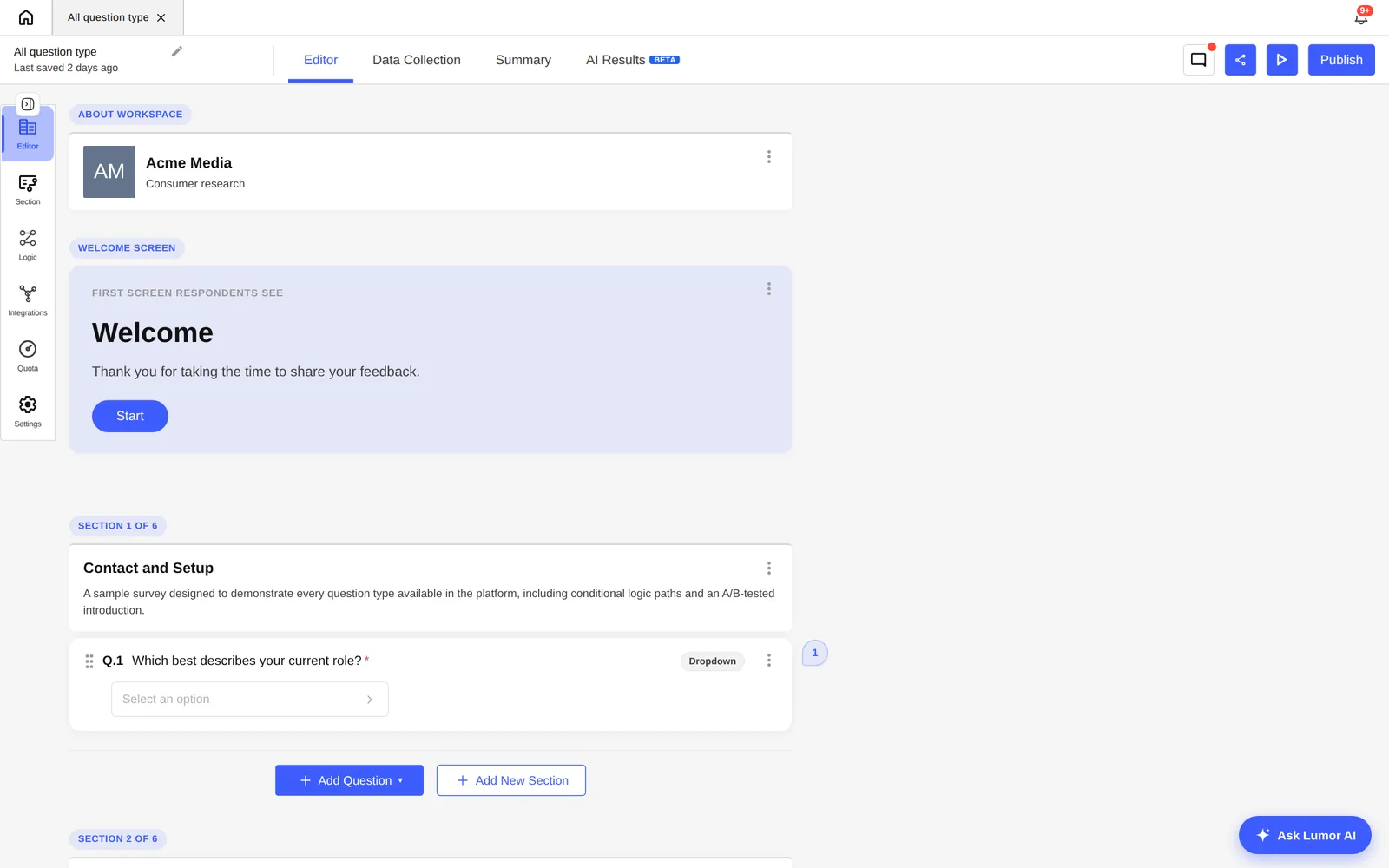
Lumor's builder lets you create a survey, adjust its settings, style the respondent experience, preview the flow, and control when it goes live.
Create and open a survey
Survey creation flow
Start a survey from your workspace or from a specific project folder.

Step 1 of 2
1. Start a new survey
Pick the study type, name your survey, and place it in the right folder.
Quick start
Build a publishable survey
A practical checklist for creating a survey respondents can complete successfully.
Draft the structure
Create the survey in the correct folder, add sections, and arrange questions in the order respondents should see them.
Configure behavior
Review settings, required questions, screeners, style, and any logic or branching before sharing.
Preview and publish
Use preview to complete the survey yourself, fix issues, then publish and collect through the right channel.
- 1Open the workspace, project, and folder you want to work in.
- 2Create a survey from the folder page.
- 3Give it a clear name so teammates can find it easily.
- 4Open the editor to add sections, questions, settings, and styles.
Builder tabs
| Tab | Purpose |
|---|---|
| Editor | Add and organize questions and sections. |
| Section | Manage section structure and how respondents move through them. |
| Settings | Configure survey behavior, publishing, and the response experience. |
| Style | Adjust how the survey looks for respondents. |
Question formats
Lumor supports common question types: single choice, multiple choice, dropdowns, rating and scale, NPS, ranking, text responses, contact fields, date and time, matrix grids, file uploads, image choice, and identity fields like name, address, and email.
Publish intentionally
Use preview before sharing a collector link. Once a survey is live, you can pause, close, resume, or reopen it to control when respondents can submit.
Pre-launch survey check
- Every question has clear wording and the right answer type.
- Required questions, branching, and screeners behave correctly in preview.
- The style and opening experience match your brand or study context.
- Publishing state is correct before you share collector or panel links.